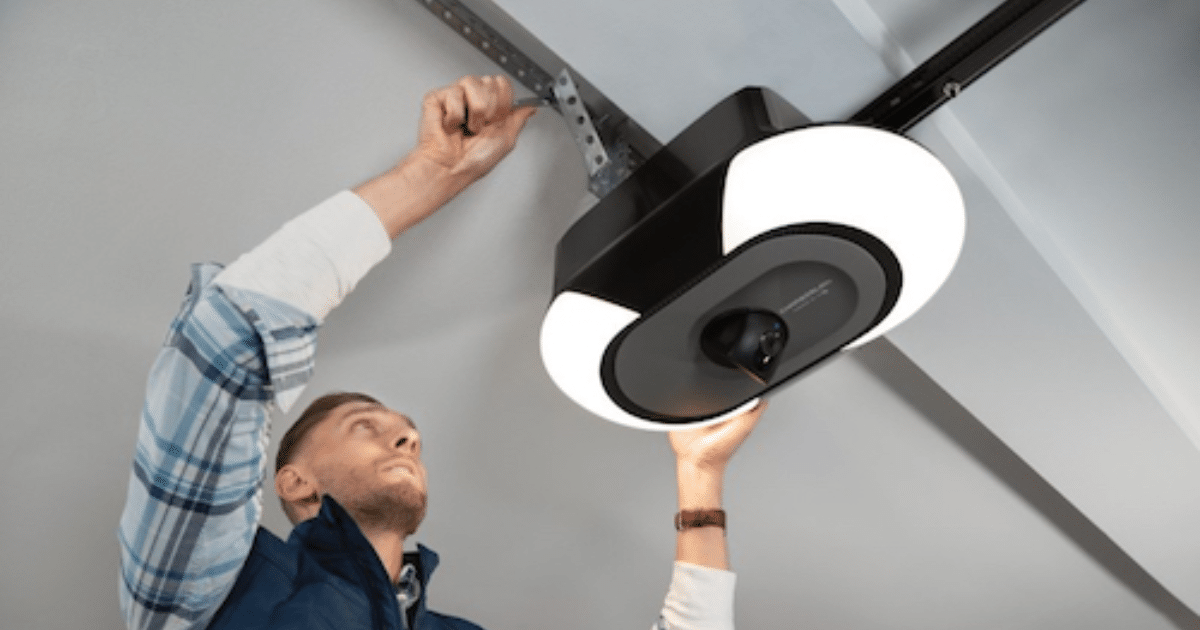
A smart garage door opener may need a Wi-Fi reset after a router change, app sync issue, or repeated network loss. Understanding this process helps homeowners restore the connection between the opener and the home network without confusing it with other connection problems.
Repeated connection loss can interrupt remote access, affect app control, and sometimes point to a need for garage door repair. This guide explains when a reset may help, what to expect after reconnecting, and when ongoing issues may need more attention.
What Causes Wi-Fi Reset Issues on a Smart Garage Door Opener?
A smart garage door opener may need a Wi-Fi reset when router changes, app sync interruptions, signal loss, or stored network conflicts prevent the opener from maintaining stable communication with the home network and connected controls.
Common causes of Wi-Fi reset issues include:
- A recent router or password change disconnects the opener from the saved network.
- App sync problems interrupt communication between the opener and the homeowner account.
- Weak signal strength in the garage prevents the opener from staying connected.
- Network interruptions after outages or updates disrupt stored Wi-Fi settings.
- Multiple connected devices compete for bandwidth, affecting the opener’s response.
To understand the quick Wi-Fi fixes homeowners often check when a smart garage door opener starts losing connection, read our guide on Smart Garage Door Opener Wi-Fi Troubleshooting: Quick Fixes, which explains the common issues behind these disruptions.
What to Check Before Resetting the Wi-Fi
Before resetting the Wi-Fi, homeowners should confirm whether the connection problem is caused by the opener, the network, or the app.
Several checks can help confirm the source of the Wi-Fi problem:
- Confirm that the garage door opener has power and responds to wall control commands.
- Check whether the Wi-Fi signal is strong enough to reach the garage area.
- Review any recent changes to the router, passwords, or internet service that may have caused the system to disconnect.
- Look for app sync problems that may affect communication between the opener and the account.
- Make sure the opener is still connected to the same home network used in the current setup.
Checking these basic issues first can help homeowners avoid an unnecessary reset and better understand what may be interrupting the Wi-Fi connection.
Reset Steps for the Wi-Fi Connection
Locate the Wi-Fi or Learn Button
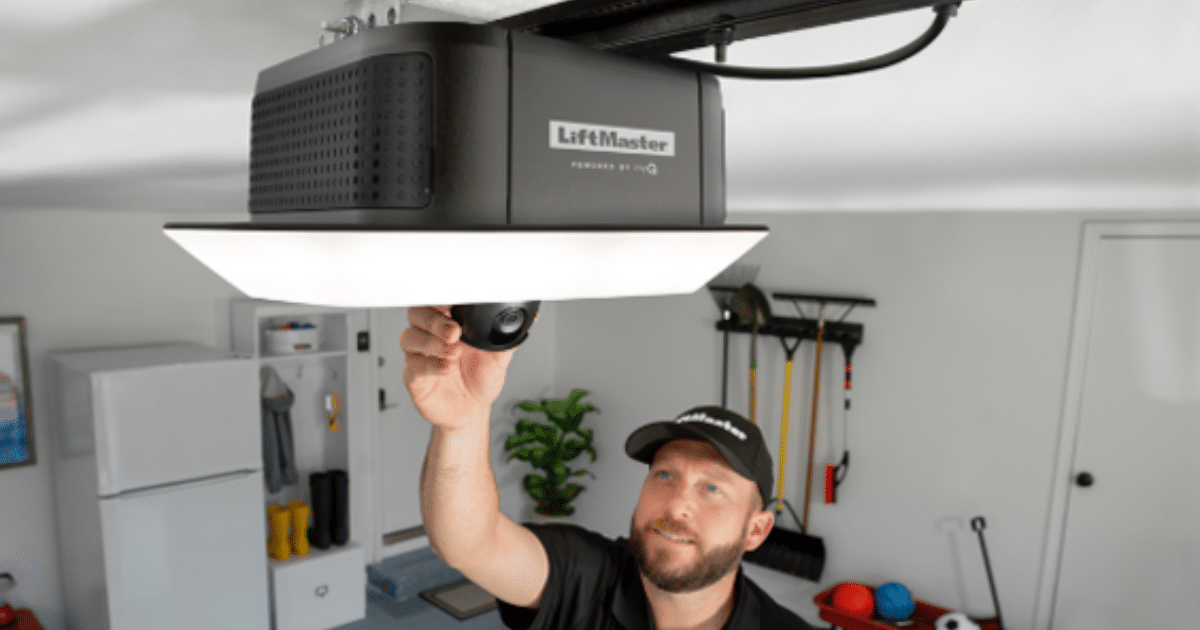
Most reset sequences begin at the opener head, where the Wi-Fi or learn button controls pairing mode and clears stored network settings.
Look for these signs:
- A labeled button sits on the motor housing, wall control area, or side panel of the opener.
- Nearby LED lights flash or change color after the button is pressed.
- Button placement varies by model, especially on units with built-in cameras or keypad features.
- Wall-mounted and ceiling-mounted openers often place the button in different spots.
As per the Chamberlain Group, the learn button is usually above the antenna wire or under the light cover, and it also controls programming, memory clearing, and Wi-Fi learn mode on compatible openers.
Clear the Saved Network
Removing the old network allows the opener to stop searching for outdated credentials and prepare for a fresh Wi-Fi connection.
Pay attention to these reset signs:
- Pressing and holding the Wi-Fi button usually removes the stored network from memory.
- Flashing or color-shifting LEDs often show that the saved connection has been cleared.
- Network reset timing can vary slightly between opener brands and model generations.
- Older app settings may still need to be updated after the opener forgets the previous network.
Put the Opener in Setup Mode
Setup mode opens a short connection window so the app can detect the opener and begin pairing it to the home network.
Common setup signals include:
- Blinking LEDs show that the opener is ready to pair with the app.
- A temporary setup window may close if the app is not opened in time.
- Nearby smart devices can more easily detect the opener during this pairing stage.
- Delays in setup mode may interrupt app recognition and restart the process.
Reconnect the Opener to the Wi-Fi Network
Reconnection links the opener to the home router again, so app control, smart home features, and remote access can return.
During reconnection, homeowners often notice:
- The app prompts for the home Wi-Fi name and password during pairing.
- Many openers connect only to 2.4 GHz networks rather than 5 GHz.
- Router changes often require adding the opener as a new device.
- Signal strength in the garage can affect whether pairing finishes successfully.
Chamberlain states that reconnecting a myQ Wi-Fi garage door opener requires joining the home network through the app, and its support guidance also highlights the need for compatible Wi-Fi settings during setup.
Sync the Mobile App Again
App syncing reconnects the opener to the homeowner account, so commands, alerts, and user controls can return to normal.
Several app-related details matter here:
- The opener should reappear in the device list after pairing finishes.
- Account mismatches can prevent the opener from appearing in the correct profile.
- Shared user access may need to be refreshed before all family members see the device again.
- Notification settings sometimes need to reload after the opener reconnects.
Test the Opener After Reset
A full reset is only useful if the opener responds normally through the app, connected controls, and remote features after pairing ends.
Useful post-reset checks include:
- Open and close commands should respond through the smartphone app without long delays.
- Remote access should work both near the garage and away from home.
- Voice assistant features may reconnect after the app finishes syncing.
- Activity alerts should be restored if the opener is linked to smart-home routines or monitoring tools.
Successful testing confirms that the Wi-Fi reset restored app communication, not just cleared the old network settings.
What Happens After a Wi-Fi Reset
A Wi-Fi reset reconnects the opener to the home network and restores app communication, device syncing, and remote features tied to the system.
Homeowners often notice the following after a reset:
- The opener reconnects to the smartphone app and reappears in the device list.
- Remote commands begin working through the app and other connected controls.
- Stored settings and account-linked features may take a short time to sync.
- Temporary alerts may appear while the smart garage door opener reconnects.
- Voice control and other smart home integration features may return after setup completes.
Restored app control, synced settings, and the return of remote features usually indicate that the Wi-Fi reset has successfully reconnected the opener.
Common Connection Problems After a Wi-Fi Reset
A Wi-Fi reset does not always restore full app control if the opener still has trouble reconnecting to the router, account, or network.
Problems that may continue include:
- A weak Wi-Fi signal near the garage prevents the opener from staying connected.
- Router settings still block the opener from completing the connection.
- Outdated app or firmware issues interrupt syncing after setup.
- The opener reconnects briefly, then goes offline again.
- Internal system faults that may indicate a need for smart garage door opener repair.
To identify what can keep a smart garage door opener from reconnecting after setup, read our guide on Why Won’t My Smart Garage Door Opener Connect to Wi-Fi?, which covers common causes of failed Wi-Fi connection.
Wi-Fi Errors That Can Appear After a Reset
A Wi-Fi reset can still leave a smart garage door opener showing connection alerts if pairing, syncing, or network communication does not finish properly.
Common error signs include:
- Offline status in the app after the reset process ends.
- Repeated disconnect alerts during normal operation.
- Flashing lights or warning beeps from the opener.
- Failed pairing messages while reconnecting to Wi-Fi.
- Slow or delayed response between the opener and the app.
To decode the Wi-Fi alerts that may appear after setup, read our guide on What Wi-Fi Errors Mean on a Smart Garage Door Opener, which explains the common error signals linked to connection problems.
Signs the Problem Goes Beyond a Wi-Fi Reset
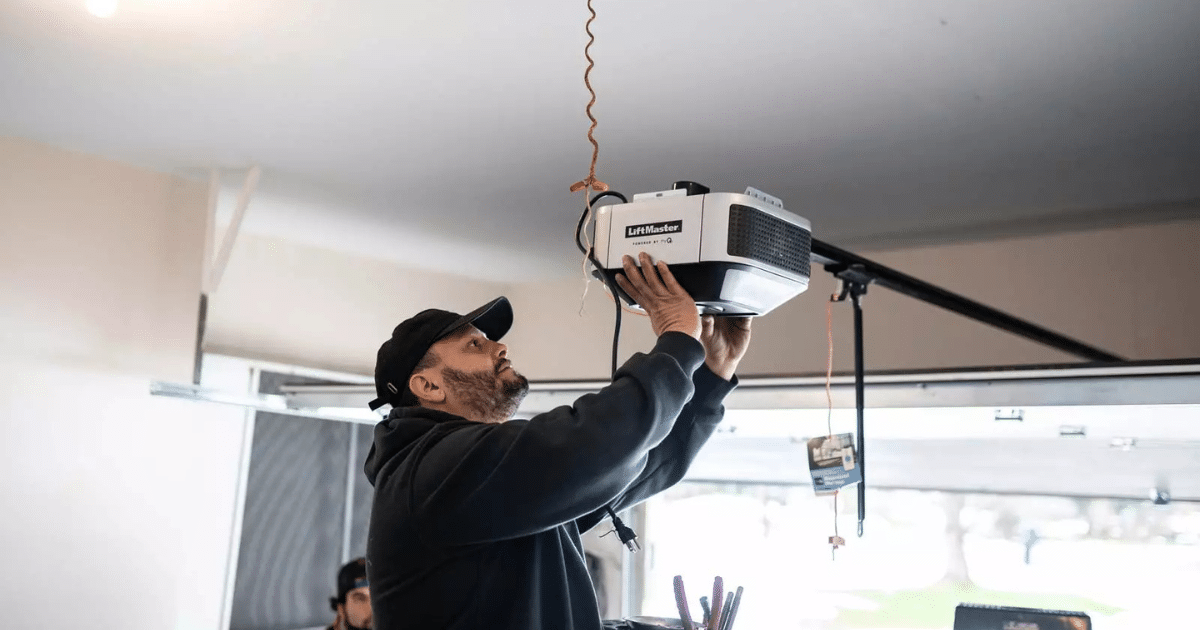
Ongoing connection failure after multiple reset attempts can point to a problem affecting the opener, internal components, or system compatibility, rather than just the Wi-Fi setup.
Common signs of a larger problem include:
- The opener keeps going offline shortly after reconnecting to the network.
- App commands fail even after pairing appears to finish normally.
- Flashing alerts or error messages return soon after setup.
- Older hardware struggles to support newer smart features and app updates.
- Wall controls or remote features work inconsistently after the reset is complete.
Repeated problems like these can indicate that the opener may need more than just another reset and, in some cases, may lead homeowners to consider smart garage door opener replacement service.
How to Prevent Future Wi-Fi Reset Problems
Stable network settings, regular system checks, and consistent app performance can help reduce repeat Wi-Fi reset issues in a smart garage door opener.
Helpful ways to reduce future reset problems include:
- Keep the opener connected to the same home network unless a router change is necessary.
- Check signal strength in the garage after internet or equipment updates.
- Update the app and opener firmware to support smoother syncing.
- Monitor connected features after smart camera garage door opener installation or other system changes.
- Watch for recurring issues with smart Wi-Fi openers before they disrupt daily use.
Ongoing attention to signal strength, app syncing, and network changes can help a smart residential garage door opener stay connected more consistently.
Professional Smart Garage Door Opener Wi-Fi Reset in Glen Burnie, MD
A Wi-Fi reset can often restore communication between a smart garage door opener, the smartphone app, and connected features. Continued connection issues may indicate network settings, hardware problems, or compatibility issues requiring further attention.
All About Doors helps homeowners in Glen Burnie, MD, address smart garage door opener connection problems and related garage door issues. We can inspect the system, identify what is interrupting normal operation, and help you move forward. Contact us or give us a call today to restore your smart garage door opener with professional service.